In this article, we will explore how to connect OBS for ultra-low latency with the nanoStream platform and reduce delay for interactive live streaming purposes. By combining OBS with nanoStream, you can guarantee that your streams will be delivered with ultra-low latency across all browsers globally. Let’s dive in and discover how to optimize your live streaming experience with OBS and nanoStream!
Table of contents
Ultra-low latency live streaming, real-time streaming: What, how, why?
Live video streaming typically just delivers content in a one-directional way. However, ultra-low latency or real-time streaming allows the audience to participate and interact. The interaction happens, for instance, via chat, Q&A, and polls with the provided content. This is often called interactive live streaming and referred to as a ‘lean forward’ experience, as the audience is an active part of the provided content.
To be more specific, technically speaking, you can refer to this as well, defining the latency of a stream. The requirement for smooth interaction via streaming is minimal latency.
That said, latency is the time difference in seconds or milliseconds between when an event is created and delivered to the audience. End-to-end latency for live streaming is counted “glass-to-glass”, from the camera to the viewer (The startup delay or load time refers to a different context).
It depends on each use case and set-up, but generally speaking, latency should not be above one second to engage large audiences for use cases like live casino, microbetting, betting, auctions or discussions. This is considered ultra-low, sub-second latency streaming or real-time streaming. Often decisions and priorities need to be made for the matter of speed that might force content providers to sacrifice, e.g. number of viewers, quality of the stream, targeting only ideal network conditions, etc.
Check out this article to learn more about the different interactive use cases for real-time video.
Low-latency OBS
Open Broadcaster Software is a widely used free open-source live video production software. With OBS, content providers can seamlessly stream live videos, record video and audio, and enjoy its extensive compatibility with numerous video sources and plugins. It’s a versatile tool available on Windows, MAC, or Linux operating systems. Moreover, the WHIP support in OBS ensures consistent low and stable latency, even in challenging network conditions or when streaming over the internet.
Low Latency Encoding: Tips to Stream With OBS, Vmix and Wirecast.
Streaming with nanoStream
nanoStream is a comprehensive end-to-end real-time streaming platform and API offered as a 24/7 end-to-end solution based on ultra-low latency and backed up by a robust and reliable Content Delivery Network (CDN). It covers browser-based player, advanced analytics and stream protection. The features cater to the specific requirements of interactive use cases, ensuring seamless playback on any browser and device, anytime, anywhere.
nanoStream received the “SRT Plugged” Badge for the successful implementation and test of the SRT protocol by more than 15 independent vendors of the video industry. These targets optimized stream quality and stability for global distribution for all areas, including bad network situations, and it can be used next to other protocols like WHIP and RTMP.
It is super easy to use nanoStream as your ultra-low-latency CDN. You can use any live encoder software or hardware, like OBS and add our nanoStream to your existing workflow. You can push your live streams to nanoStream and distribute them worldwide, while nanoStream H5Live Player will take care of the playback on any device, plugin-free.
nanoStream can also easily be an end-to-end solution by adding our live encoder Add-ons, nanoStream Webcaster, or nanoStream Apps and SDKs. You can even integrate with existing video meeting solutions like Zoom or Jitsi!
To learn more about live video streaming with your own RTMP encoder to nanoStream, check ourdeveloper documentation.
nanocosmos is proudly sponsoring the OBS project to be a reliable software for live streaming. Also, nanoStream is available as a streaming destination for better automatic setup in OBS.
How to set up the live stream broadcast to nanoStream with OBS
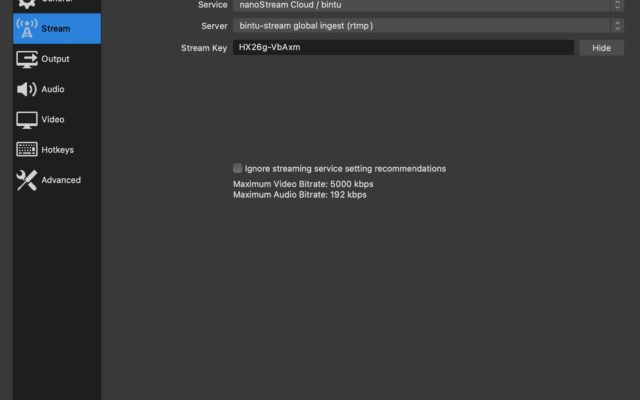
Automatic Configuration
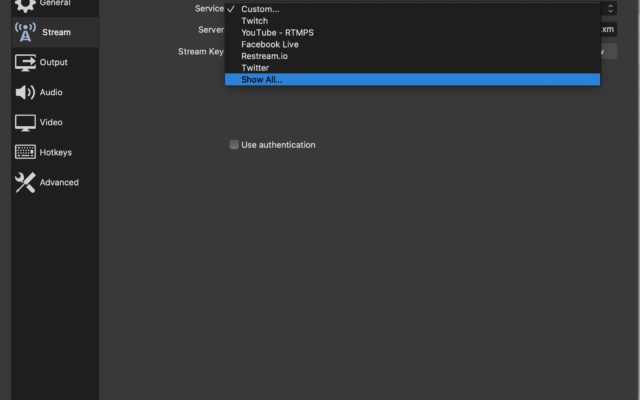
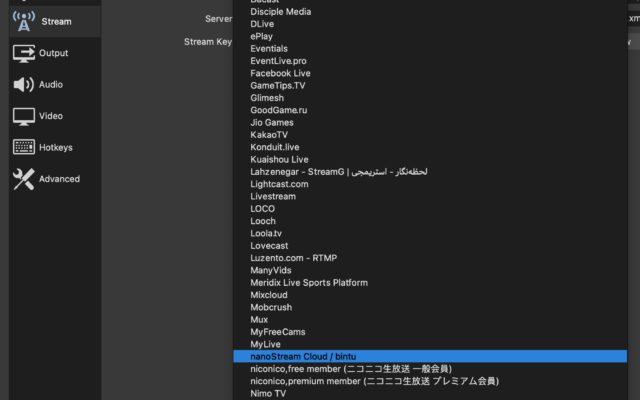
New: nanoStream available as a stream configuration in OBS
- Open OBS
- Output Stream Configuration: Select “Settings, Stream, Service”
- Select “Other… / nanoStream”
- Enter the Stream Key (from nanoStream/ bintu stream name, e.g ABCDE-XYZ12
Manual Configuration
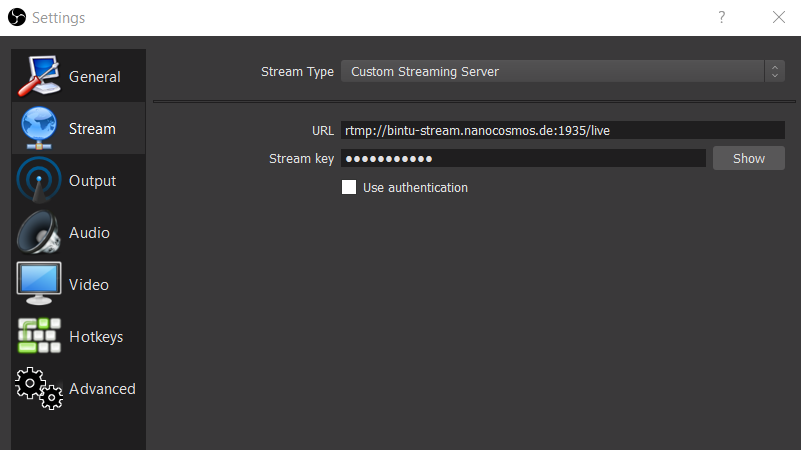
- Manual Configuration
- Stream output: “Settings/Stream/Service/Custom Streaming Server”
- As “server” enter the RTMP Ingest URL to the URL from nanoStream/ bintu
- As “stream key” enter the stream name from nanoStream / bintu, e.g ABCDE-XYZ12
Video Configuration for Low Latency
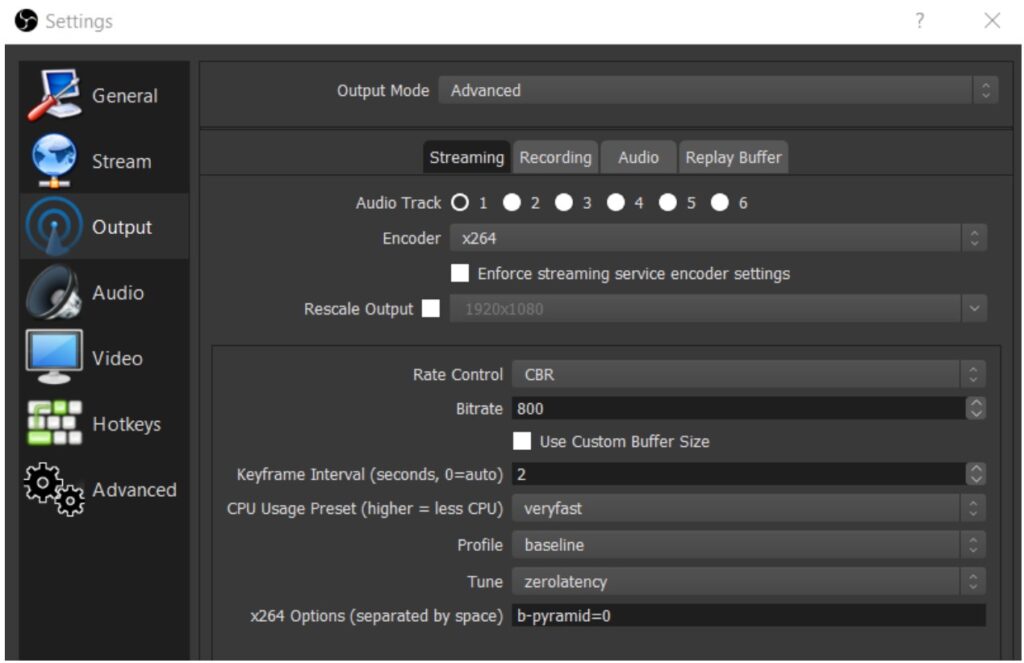
- Select “Output”
- Select Output Mode: Advanced
- Select Encoder: x264
- Select Rate Control: CBR (Background: “Constant Bitrate” is better for low latency live streaming)
- Select Bitrate: between 500 kBits/s – 800 kbits/s – 2000 – 4000 kBits/s or more
(See the quality recommendations below)
- Select Tune: ZeroLatency
- Optional: CPU Usage: veryfast (the faster, the fewer CPU resources, but lower quality)
- Optional: Profile: Baseline and B-Pyramid=0 (see below)
Background: Baseline is a H264-standard based profile optimized for lower complexity and latency. It may have a slight impact on quality compared to latency (latency impact max. 100 ms). Other profiles like “Main” and “High” work well with nanoStream.
(b-pyramid is optional now – it may improve compatibility with some playback options like older Chrome browsers)
OBS Advanced
Live Stream Quality
nanoStream supports the highest video quality for delivery and distribution to all browsers. However, there are physical limits to your network connection and encoder performance. Generally, there are no limits for frame size and resolution. If your hardware and network support it, you can go up to Full HD or 4K resolutions for live streaming. To deliver to all networks and devices, you may need to add Adaptive Bitrate Live Transcoding options to your streaming setup.
Video quality mainly depends on:
- video resolution and bitrate of the encoder configuration
- CPU and system performance of your camera and PC / Laptop
- Network capacity
All factors have an impact on quality. If you try to turn the bitrate and resolution very high, but your system and the whole network do not support it, you will get bad results.
Recommendation
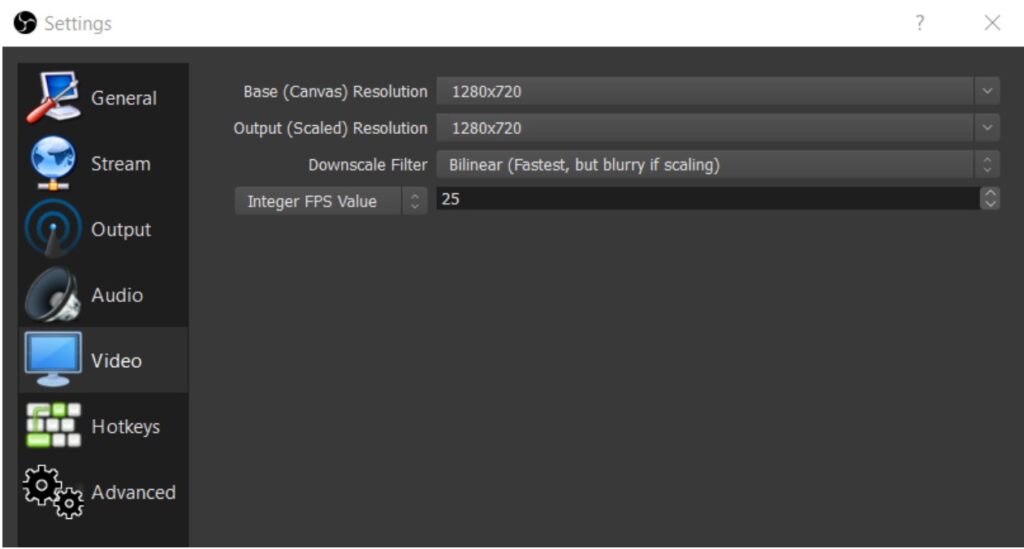
Start with the lowest acceptable quality, like medium resolution and bitrate, like 640×480 1000 kBits/s or 1280×720 2000 kBits/s.
Additional Information
WebRTC: Comparing Low-Latency Streaming Protocols
How to use nanoStream Analytics